
As you may know, Microsoft ended support for Windows 10 on October 14, 2025. This means that it will no longer provide technical assistance, feature updates or security updates. This has prompted me to bite the bullet and convert the Windows box I use in my shack to Linux.
 On October 14, I received an email from iFixit titled, “Windows 10 is Dead.” The email contained a link to an article on the iFixit website that explained how to install Linux Mint on your PC. It looked easy enough, so I decided to give it a go.
I downloaded the .iso file and verified the download according to the instructions, but I ran into a snag creating the bootable USB drive. First of all, iFixit suggests using the Fedora Media Writer. I’d used Balena Etcher in the past to create bootable USBs, and when I saw that the installation instructions on the Linux Mint website also suggested using Balena Etcher, I switched over to their instructions.
Unfortunately, I wasn’t successful on my my first to create a bootable USB. I tried putting it on a USB drive that I’d used to install Linux on an old iMac, but that just didn’t work. I couldn’t even re-format the the USB stick. It did work the second time, after I purchased some new USB drives. I’m not sure why I couldn’t reformat the old drive, but no matter, I just tossed it.
Next, I backed up the data on the Windows box. This wasn’t difficult as I don’t keep a lot of data on it. I exported my log data to an ADIF file to another USB drive, then copied some random data files, such as the PDF file of my IC-7610 operating manual.
After that, the install went pretty well. I decided not to try to make the machine a dual-boot computer and just installed Linux Mint over the Windows operating system. It wasn’t long before my shack computer was now running Linux.
Choosing a logging program
My next task was to choose a logging program. I asked on Mastodon, which is social media for nerds, leftes, and nerdy lefties, what Linux logging programs folks had used or would recommend. As you might expect, I got a bunch of replies, including:
Based on the number of mentions/recommendations, I decided to try QLog first. In retrospect, I’m not sure that was the best criterion, but the Linux Mint installer found it and installed it. Logging and editing contacts with QLog is relatively straightforward, although getting things set up is a bit quirky. By that I mean the menus and screens don’t work exactly how you might expect them to work.
For example, when you log a contact, QLog keeps track of the duration of a contact. I don’t know for sure, but I think that the way it works is that the program logs the start time of a contact, times the duration of a contact, and then calculates the end time.
What was happening is that when I would edit a contact, if I changed either the start time or end time, QLog would change the other value as well, based on the duration of the contact. For example, if I decreased the start time of a contact by two minutes, it would automatically decrease the end time of the contact by two minutes.
This was very frustrating until I discovered that I had to click an unlabelled bar next to the start time and end time fields to unlink the two values. I found no mention of this in the documentation; I figured this out by just clicking on stuff. At any rate, once I figured this out, I was able to change the start time and end time of a contact independently.
Linking QLog to my IC-7610
The next thing that I wanted to do was to configure QLog to talk to my IC-7610. The first step was to install the hamlib software package. The Linux Mint installer couldn’t find this package, but a quick query on Mastodon got me the information I needed to install it.
Once that was done, I needed to configure QLog. To do this, you call up a configuration screen (shown in the screen shot below) by clicking File -> Settings -> Equipment -> Rigs and add a rig. One of the nice things about QLog is that you can have a number of these configurations and switch between them if you use more than one rig.
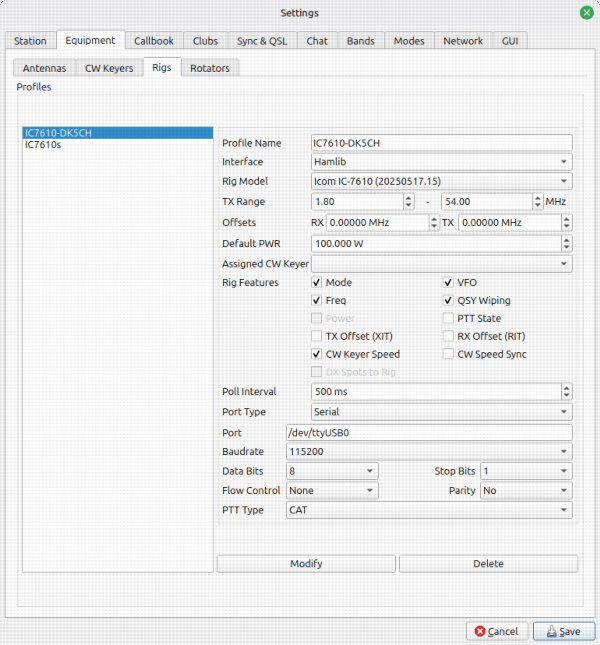
Try as I might, though, I couldn’t get QLog to talk to the radio. So, I turned to IC-7610 mailing list. I got several nice replies, including one from Chris, DK5CH. He sent me the details of his configuration of both QLog and the IC-7610, but that failed to get them talking. I surmised that perhaps I needed a driver from Icom, or that maybe I needed to change the CI-V configuration of the IC-7610. He sent his IC-7610 CI-V configuration, but that didn’t work, either.
Another thing that Chris mentioned is the user running the program has to be a member of the “dialout” group. I figured out how to add myself to the dialout group, but still no joy.
Of course, it turned out to be something simple. In one of his emails, Chris, wrote, almost as an afterthought:
As you can configure multiple radios in QLog, you have to first choose the radio, then click on Equipment -> Connect Radio. This isn’t required by other logging software.
Once, I did that it worked like a charm! Thanks, Chris!
One of the reasons all this was so frustrating is that I don’t see this step in the documentation at all. Incomplete documentation is a problem with many open-source projects like this. Once I’m happy with QLog, I plan to take a look at the project wiki and see if I can’t improve the docs.
Other things I needed—and still need—to do
While getting QLog to talk to my radio was the most time-consuming, there were a couple of other things I needed to do to get it working the way I wanted. One of them was to import the ADIF file from my from the Windows computer. The snag here was that I created a special field for the city in my N3FJP log, and that field didn’t import into QLog.
QLog does have a QTH field, though. So, what I did was to use vim to substitute “QTH:” for “City:” in the ADIF file. That worked great, even though the ADIF file was nearly 18 megabytes. Most text editors don’t like files that large.
Next, I wanted to add the State field to the QSO table and the QSO input screen. Adding it to the table was easy enough. Right-clicking on any of the fields in the table brings up a screen with all of the available field types. Checking the State box added that field to the table.
Adding it to the QSO input area was a little less intuitive. QLog has kind of a weird way of doing this. First of all, I had to create a configuration type for the configuration I wanted and then edit that configuration. Once I’d done that, to move the Table field out of the Details area and then back into the QSO input area, where I wanted it. Again, this wasn’t really explained at all in the documentation.
Finally, I need to configure QLOG to submit contacts to Logbook of the World. I don’t anticipate that to be a big chore, but you never know. :)
Having said all this, I do like QLog. I have it pretty much configured the way I had the N3FJP ACLog configured, and it’s working pretty much the same way. With some improvements to the documentation, this could be a really nice logging program.
After QLog, what’s next? I’ll probably install:
- Not1MM for contesting.
- WSJT-X. I still want to try meteor scatter one of these days.
- fldigi
- Some kind of SDR package. A couple of months ago, Linux in the Ham Shack had an episode on SDR++ Brown, and I’ve been meaning to try that.
- GNU Radio, if I get ambitious.
Scott has indicated in the past that he intends to write a native linux version of his software. Too bad he hasn’t already done that.
Good morning Dan, looking forward to your LInux adventure I have considered it in the past but it was the contesting software leap that had me holding back. In your post I saw the link for Not1mm and I thought hmmm. Anyway looking forward to your posts.
73,
Mike
VE9KK
I’ve recently migrated from MS Windows 11 to Linux Mint and now to Kubuntu. Mint is great and I highly recommend it. The only reason I’m on Kubuntu is that I wanted to see what it was like.
My system is really pretty complicated as it is not only used for ham radio but it is my daily driver and I rely on it to do lots of other things – LibreOffice-documents and spreadsheets, Veracrypt-encryption, KeePass-password management, Thunderbird Mail-email client to manage all email accounts, Mozilla Firefox-web browser, kdenlive-video security, photo/video editing and digikam-cataloging, Synology Drive-sync folder between PCs & Laptops NAS, Steam & SteamVR-Gaming running Proton Experimental (It will even run MS Flight Simulator 2020 & 2024. I run ALVR to a Quest 3 VR Headset when flying MS Flight Sim 2020 which is amazing. Little NavMap-Flight planning gps routing, airport details for flight simulators. Unfortunately VR doesn’t work yet in MSFS 2024 on Linux. I also have flight pedals, flight stick and controls all recognized and programed in Linux.
I’m sure there is a lot of other stuff I’ve overlooked. I guess the point I’m trying to make is that with some effort, you can migrate away from Microsoft and end up with a very nice Linux installation. People ask why leave Microsoft? Well, I just didn’t like where the company was heading with MS Windows. They keep trying to force people to require a MS Account in order to login to Windows. They are constantly changing things and installing stuff that I don’t want. They had taken way too much control of my desktop – constantly reporting everything I did back to Microsoft.
Linux is great. The learning curve is steep but has gotten way easier with Linux Mint. There are graphical user interface apps that help you accomplish just about everything you want to accomplish. There is also a huge user base that provides a wealth of knowledge so that when you get stuck and need help, someone has already figured out how to do it.
I’m enjoying my adventure!
For the ham radio side of things, I using wfview-rig control, Qlog-Logbook, wsjtx but mostly fldigi (package)-digital modes etc., Elecraft KPA500 and KAT500 control, RigExpert-Antenna Analyzer,