
Back when I had an IC-7300, one of the things I lamented is that the display wasn’t bigger. I had heard about wfview, which is open-source software designed to control modern Icom radios, but I never did get around to installing it.
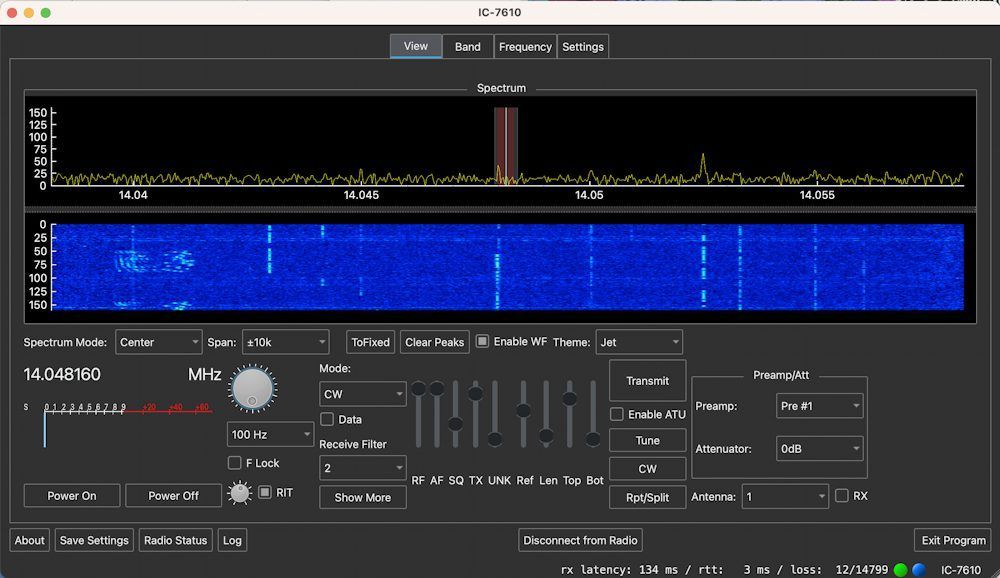
Then, I purchased a Flex 6400. As far as computer display and control, the Flex is wonderful. You can make the display as big as you want, and all the most commonly-used controls are readily available.
I missed having real knobs and buttons, though, so a couple of months ago, I got a good deal on an Icom IC-7610. I’m an Icom fanboy from way back, but there are some things about computer control that I miss, so I decided to finally download and install wfview.
The download and application install went swimmingly. Getting the program settings correct wasn’t quite so easy, however. For some reason, I just couldn’t seem to get wfview to talk to my radio over the LAN connection. I think that there were a couple reasons for this:
- wfview was originally written to control IC-7300s over the USB port.
- The document could be a little more explicit.
- Operator error (namely me)
Let me give you an example. On the Getting Started page, it says to “Enter the [6] username as set on the radio,” where [6] is a text box labelled “Username.” What the documentation doesn’t say is that what you should type into this box is the value that’s entered as “Network User1 Name” on the radio.
What really tripped me up is figuring out the IP address of the radio. In the wfview forum topic IC-7610 Connect Over LAN, I was asked what my radio’s IP address was and if I could ping it from my computer. To make a long story short, the radio’s IP address is found on the radio under Settings -> Network -> DHCP. I suppose that this is a logical assumption, but it just didn’t occur to me.
So anyway, after fiddling with it for a couple of hours probably, and enlisting the help of a friend of mine who knows more about networking than I do, I finally got it running. I do like being able to make the display bigger than the display on the radio. I also like the ability to set some parameters by just clicking. For example, it’s nice to be able to select the displayed frequency span by just selecting from a drop-down menu, rather than cycling through the options by pressing a button on the front panel. For the most part, though, I’m not sure that it offers users much, if you’re going to run it on the shack computer.
Where I do think it will come in handy is on my MacBook laptop. I installed it on the laptop, and was easily able to access the computer via WiFi. Now, I can operate the radio from my deck on a nice summer day.
Unfortunately, I can’t seem to operate CW, though. One of wfview’s features is what they call the CW sender. Unfortunately, the CW sender isn’t quite as finished as the rest of the software, and this limits its usefulness. Apparently, it’s prone to crashing. I did get it to send QRL?, but then it wouldn’t send CQ for me. I’m looking forward to the next release, which is supposed to fix these bugs and add some cool CW operating features.
I’m getting to the point where I don’t want to waste me time with something half-baked, waiting for the ‘next release’ to fix stuff, which may never come. Good luck with wfview.\
73,
— Dave, N8SBE
Took me a bit of time figuring out what the IP Address of the radio was. The Wfview works pretty good with the x6100. Quirkly little radio but overall does a fair job.
What good is this !
I have been using Wfview for a couple of years. I also have Icom’s RS-BA2 remote software. I like Wfview better and have found it to be stable and reliable. Amazing for something that is free..
I have used it for digital modes, SSB, and CW, and I have the remote RC-28.
For CW, I think it works almost as well as can be expected for remote operation. You must use a keyboard rather than a key to send because of network delays.. There are some improvements still to be made however and I expect the developers to do so.
How do you determine the IP address of the radio?
On your ICOM, go into your network settings and you will see the current address assigned to your radio by the network.
Just in the process of installing